Start with the moment a viewer hears the mistake
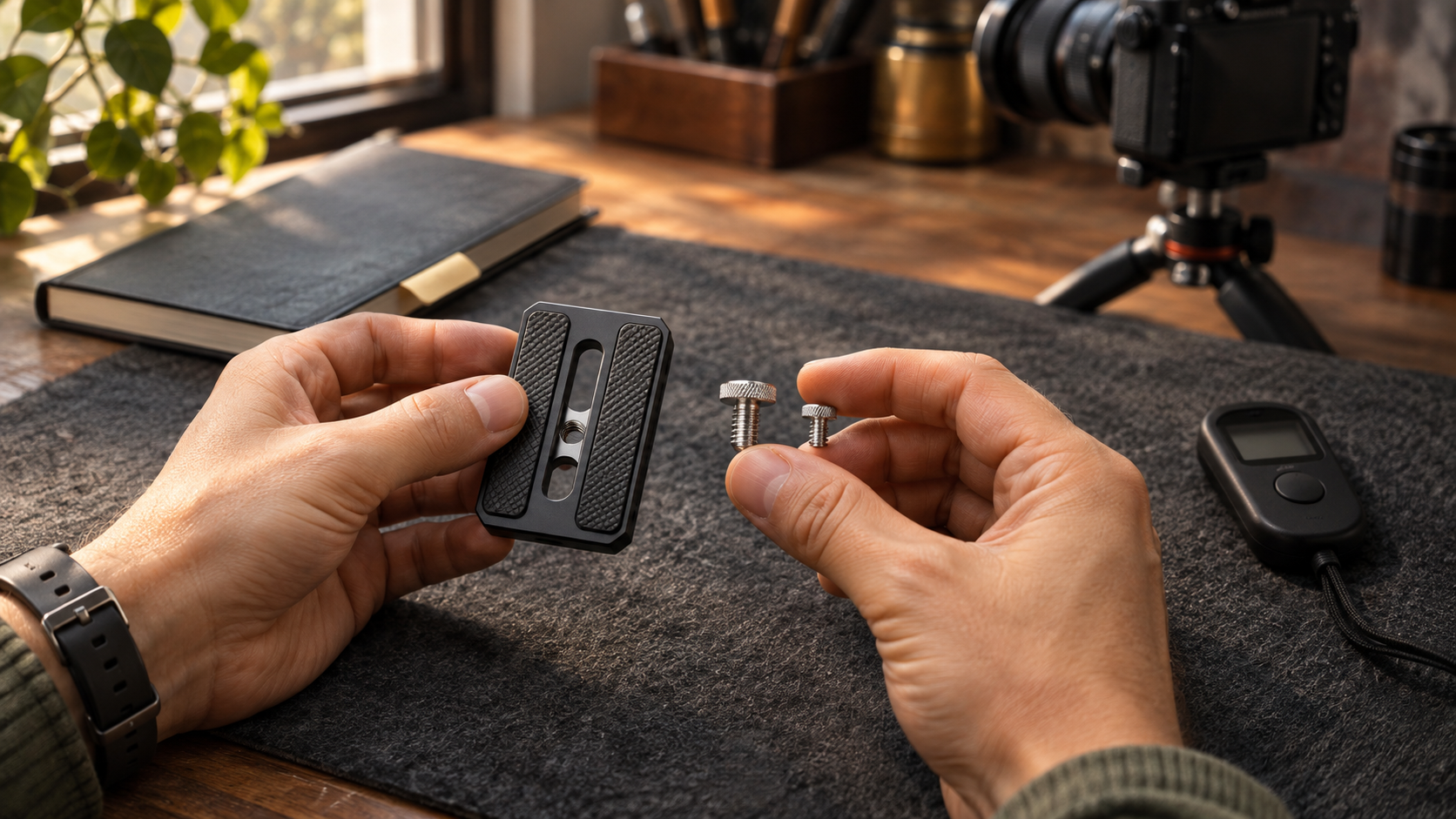
You notice a wrong screw size in a camera tutorial after it goes live. Before you touch the description, replay the public video and mark where the incorrect line begins. Write down what the viewer needs to know at that moment. ‘Correction below’ leaves them guessing. A time, the model and the accurate specification give them something to act on.
Verify the correction against the manufacturer’s documentation for the exact model shown. If a specification differs by model year or revision, say which one the correction applies to.
Add a timestamped correction in YouTube Studio
- Go to Content in YouTube Studio and open the existing video. Save a copy of its current description before you edit.
- After any chapter list, add Correction: or Corrections: on its own line. YouTube requires that heading in English even when the rest of the description uses another language.
- On the next line, write the timestamp and explanation. Hypothetical example: 1:42 The plate shown uses a 1/4-20 screw. I called it a 3/8-inch screw in the video. Check the manual for your exact plate before ordering.
- Save and check the public watch page. Look for the View Corrections card where available. Check that chapters, links and disclosures are still intact.
Decide whether a note does enough
A timestamped note leaves the original footage and sound intact. That’s useful for a wrong part name or a date you can correct in one sentence. It has limits if the central demonstration is wrong or if someone could damage equipment by following it. In that case, consider taking the original out of public view while you prepare an accurate edit.
YouTube lets you modify some aspects of an existing upload, but you cannot swap in a replacement video file under its existing URL. If you upload a corrected version, plan for its new link wherever you previously shared the original.
Make the correction useful outside the video, too
If the mistake also appears in the title, a linked parts list or the thumbnail, fix those wherever you control them. A correction at 1:42 can’t help someone who copies a product number from the title without playing the video. Keep the descriptions on the watch page and any companion article consistent.
For a material correction, put a short plain-language warning near the top of the description as well. You can keep the native Corrections block below the chapters. The first tells people there was an update; the second tells them exactly where the mistake occurs. Finally, view the finished description on a phone, where it is easy to miss everything under the first line.
Keep the correction when you refresh metadata later
If you use ReeLoop to draft a new title, description and tags for an existing upload, compare the draft with the saved description before applying it. Copy back the correction block, chapters, credits and disclosures if any have dropped out. Add and verify the native correction in Studio; don’t assume rewritten metadata fact-checks a video or creates the card.
Frequently asked questions
Does adding a YouTube correction change the video link?
No. You’re changing the description of the existing upload. If you upload a new video file instead, YouTube gives that upload a new URL.
Where does the correction go if my video already has chapters?
Put it after your chapter list. Use Correction: or Corrections: in English, followed on the next line by the timestamp and the explanation.
Why is the View Corrections card missing?
Check the heading, timestamp and placement. YouTube also says the feature won’t be available for channels with active strikes or if the content may be inappropriate to some viewers. Leave a clear correction in the description even if you cannot verify a card.